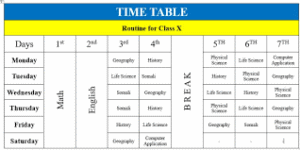
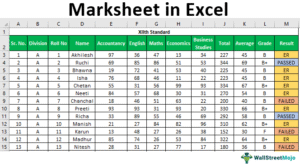
Table:-
By using this option we can Insert or draw a table into the document.
How to Insert a Table:
Method 1: Using the Table Insert Tool
- Place Your Cursor: Position your cursor where you want to insert the table.
- Insert Table:
- Go to the “Insert” tab.
- Click on the “Table” button.
- You’ll see a grid. Hover your mouse over the desired number of rows and columns, and click to insert the table.
Method 2: Drawing a Table
- Place Your Cursor: Position your cursor where you want to insert the table.
- Draw Table:
- Go to the “Insert” tab.
- Click on “Draw Table.”
- Your cursor will change to a pencil.
- Click and drag to draw rows and columns.
- Double-click to stop drawing.
Customizing Your Table:
Once you’ve inserted a table, you can customize it in various ways:
- Resize Columns and Rows: Drag the edges of the cells to adjust their size.
- Merge and Split Cells: Combine or divide cells to create different table layouts.
- Add or Delete Rows and Columns: Use the Table Tools to add or remove rows and columns.
- Apply Formatting: Change font, font size, color, and other formatting options for text within the table.
- Add Borders and Shading: Customize the appearance of your table with borders and shading.
- Sort and Filter Data: Organize data within the table using sorting and filtering functions.
By using these methods and customizing options, you can create tables that enhance the clarity and organization of your document.
Pratice This FIle